
Customers and contacts
Manage company records and the people at them in GVenta Help Desk, and learn why a customer's Domain field routes inbound email automatically.
Documented from GVenta Help Desk version 1.8.55.
GVenta Help Desk keeps two related directories: Customers are the companies you support, and Contacts are the individual people at those companies. Tickets are linked to both, and the company’s email domain is what lets inbound mail file itself under the right account.
Customers
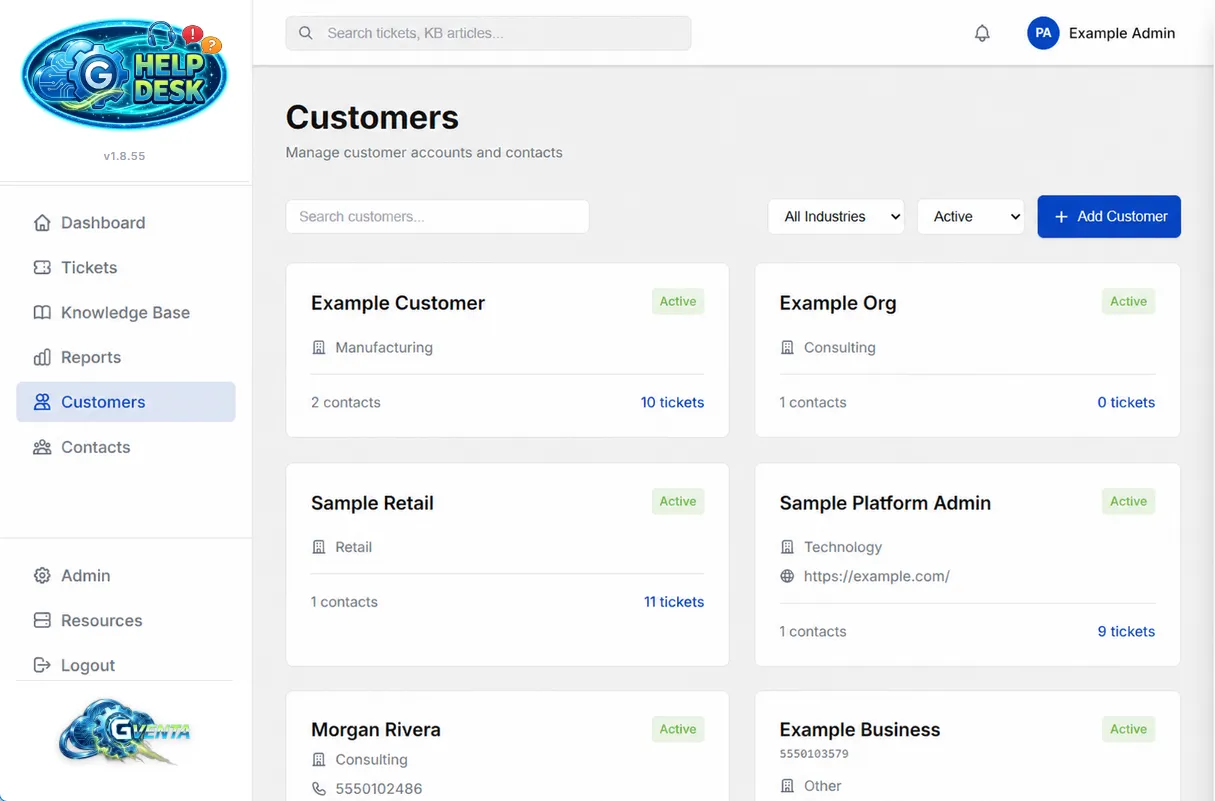 Customers: one card per company with contact and ticket counts.
The Customers page at https://your-instance.example/customers is the account-level view of who you support.
Finding a customer
Customers are shown as a card grid with:
- Search.
- An industry filter: Technology, Manufacturing, Consulting, Healthcare, Finance, Retail, Other.
- A status filter, set to Active by default.
Each card shows the company name and key contact details, with footer counts of that company’s contacts and tickets.
Customer detail drawer
Clicking a card opens a slide-over drawer. Like the ticket drawer, it is resizable by dragging its edge and remembers the width you choose. It contains:
| Block | Contents |
|---|---|
| Company Information | Company details, including the total number of tickets. |
| Contact Information | Phone, website and similar details. |
| Address | The postal address. |
| Notes | Free-text notes about the account. |
| Contacts | The people at this company, with an inline Add Contact action. |
| Tickets | This company’s tickets, loaded live. |
Footer actions are Delete, Close and Edit Customer.
Adding or editing a customer
The add/edit drawer has these fields:
| Field | Notes |
|---|---|
| Company Name | Required. |
| Account Number | |
| Industry | One of the industry values above. |
| Domain | The company’s email domain. See below; this field does real work. |
| Website | |
| Phone | |
| Address Line 1 and 2, City, State, Postal Code | |
| Country | Defaults to United States. |
| Notes |
The add/edit drawer deliberately ignores clicks on the backdrop; it closes only through Cancel or Save, so a stray click can never discard a half-completed form. Pressing Escape offers a guarded close that asks before discarding. Navigating away from the page with unsaved changes also triggers a warning.
The Domain field drives automatic assignment
The Domain field is functionally significant, not decorative. When an email arrives from a sender the Help Desk has never seen, the email pipeline extracts the sender’s domain and looks for a customer whose Domain matches. On a match, the new ticket is assigned to that company and a contact record is created automatically under it. From then on, that person is a known contact and their future email is filed by the contact record.
If the sender already has a contact record, the contact’s company is used instead of the domain lookup. That ordering means a manual assignment you make (for example, a consultant with a personal address who works for one of your customers) is always preserved.
The same cascade is used when a customer registers for the client portal: the ticket’s customer is used if there is one, otherwise the email domain is matched to an existing customer, otherwise a customer is created from the domain. See Email pipeline for the full matching sequence and Client portal for registration.
Why it matters: Set a company’s email domain once, and every future email from anyone at that company files itself under the right account automatically.
Deleting a customer
Customers are soft-deleted: the record is hidden rather than destroyed, so the tickets and history linked to it survive. The same applies to contacts.
Contacts
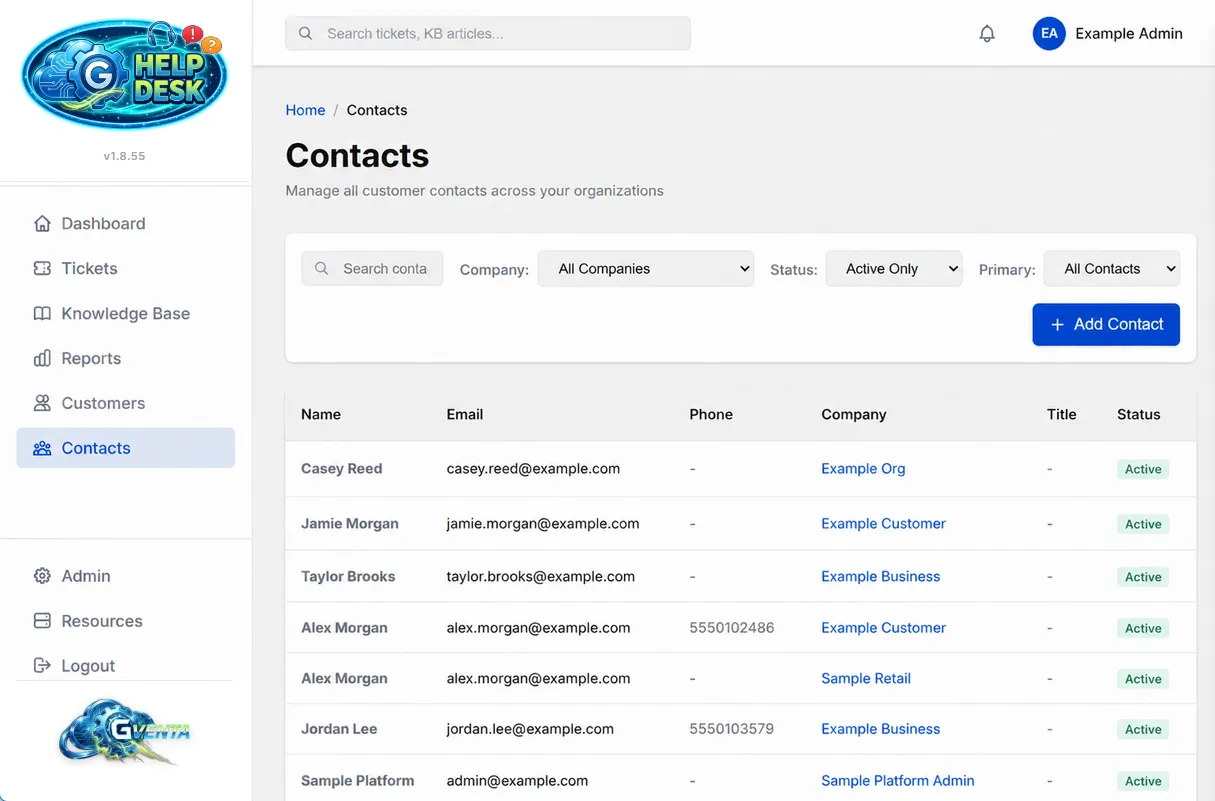 Contacts: the person-level directory across every company.
The Contacts page at /contacts is the person-level directory across every company.
Finding a contact
Contacts are shown in a sortable table with Name, Email, Phone, Company, Title and Status columns, with pagination.
- Search matches name, email and company.
- Filter by company.
- Filter by status, set to Active Only by default.
- Filter by primary contact: All, Primary Only or Non-Primary.
Contact detail drawer
Opening a contact shows their contact information (email and phone are clickable mailto: and tel: links), company, title, department and notes, plus a live Open Tickets list for that person. Each ticket in the list carries status and priority badges and clicks through to the ticket itself.
Adding or editing a contact
| Field | Notes |
|---|---|
| First Name | Required. |
| Last Name | Required. |
| Required. | |
| Company | Type-ahead autocomplete of customer records. |
| Phone | |
| Mobile | |
| Title | |
| Department | |
| Notes | |
| Primary Contact | Checkbox. |
| Active | Checkbox. |
Contacts can also be added from within a customer’s detail drawer, which pre-selects the company.
Contacts and the client portal
A contact record is what a customer signs in with on the client portal. Contacts created automatically by the email pipeline exist as records with ticket history but no portal access; when that person registers on the portal, the registration claims the existing record and links it to their history rather than creating a duplicate. Portal access, password reset and account locking are covered in Roles and access control and Client portal.
CC recipients become contacts
When an inbound email carries CC addresses, each one is validated and either matched to an existing contact or created as a new contact under the appropriate company, and recorded against the message. This is why the ticket drawer can pre-populate CCs from the conversation history.
Related pages
- Tickets for changing the customer linked to a ticket.
- Reports and analytics for the Customers and Contacts tabs, which show which companies and people generate the most load.
- API reference for the customer and contact endpoints.