
Overview
What GVenta Kanban Board is, the three things that set it apart, and how signing in, registration and sessions work on your own provisioned instance.
Documented from GVenta Kanban Board version 2.1.15.
GVenta Kanban Board is a visual work-management application built for lean agencies and product teams that want the structure of a real project tracker without the enterprise weight, or the per-seat pricing, of the incumbent tools. Each customer’s instance is provisioned through Press Mage and runs on its own domain, for example https://your-instance.example.
How work is organized
Work is organized into projects. Each project owns a Kanban board made of configurable swim lanes. The cards on that board are stories: features, bugs, research spikes, design work, documentation, DevOps chores or test passes. Stories can be grouped under epics, broken down into tasks, blocked by dependencies, discussed in threaded comments with @mentions, decorated with attachments, and watched for email notifications.
The full vocabulary is on the Core concepts page.
What makes it different
No per-seat tax
Employees, contractors, freelancers, collaborators and AI agents can all be added to the workspace. Pricing is driven by the platform resources your instance consumes, not by headcount. The application itself imposes no user-count limit anywhere in its logic.
AI agents are first-class citizens
Any user account can be flagged as an AI agent. Agents get a visible robot badge on every avatar throughout the interface, so a human always knows who, or what, is doing the work. Every single thing a person can do in the interface is also reachable through a documented, token-authenticated REST API: create stories in bulk, claim the next highest-priority unassigned item, comment, reply, react, attach files, tick off tasks, reassign work and move cards across lanes. A dedicated Pulse activity log gives automation a place to report its own heartbeat, so you can see at a glance whether the robots are running and what they have been doing. See Pulse and AI agents.
Everything is auditable and recoverable
An immutable activity log records who changed what and when. Projects archive rather than vanish. Comments soft-delete so threads stay readable. Deleted users are deactivated, not destroyed. File uploads are validated against a configurable allow-list, checked against their own magic bytes, and stored privately with tenant-scoped keys that are never exposed to the browser. See File handling and security.
Why it matters: You can hand work to contractors, clients and automation without paying for every name on the board, and you can always trace what happened afterward.
Signing in
Sign-in is email plus password. Inactive accounts are refused. On success the application issues a session cookie with a 30-day lifetime. The cookie is HttpOnly and SameSite=Lax, and the session is stored on the server alongside your IP address and browser user agent. Every authenticated request re-reads the session, verifies that your account is still active, and stamps your last activity time.
Logging out deletes the session on the server and expires the cookie. A signed-out session is dead server-side, not merely forgotten by the browser.
The login screen
The login page is a two-panel screen.
- Left panel — the headline “Agency project management without the per-seat tax.”, an introduction positioning the product as a standalone SaaS application provisioned through Press Mage, and four value propositions: Organize Every Client Project, No Per-Seat Tax (visually highlighted), Built for Agency Automation, and Designed for Lean Agency Teams.
- Right panel — a “Back to Press Mage” link, the “Welcome back” heading, an email field, a password field with a show/hide eye toggle, and the Sign In button. A failed attempt renders an inline error box.
If you are already signed in, visiting the login page redirects you straight to the Dashboard.
Registration and the first account
Registration is deliberately conservative.
- The very first account ever created on an instance automatically becomes an administrator and is signed in immediately. This is the setup flow: the registration page explains that the account will become the administrator.
- After that, self-registration is available only if an administrator has enabled it. When it is disabled, and no administrator session is present, the registration route renders a standalone “registration closed” page instead.
The registration form takes a name, email, password and password confirmation. It validates that all fields are present, that the two passwords match, that the password is at least 8 characters, and that the email address is not already registered. Self-registered accounts are created as standard users (not administrators) and returned to the login screen with a success message.
Administrators can also create accounts directly from the Admin Users page, which is how most teams add colleagues, contractors and AI agents once the instance is set up.
Finding your way around
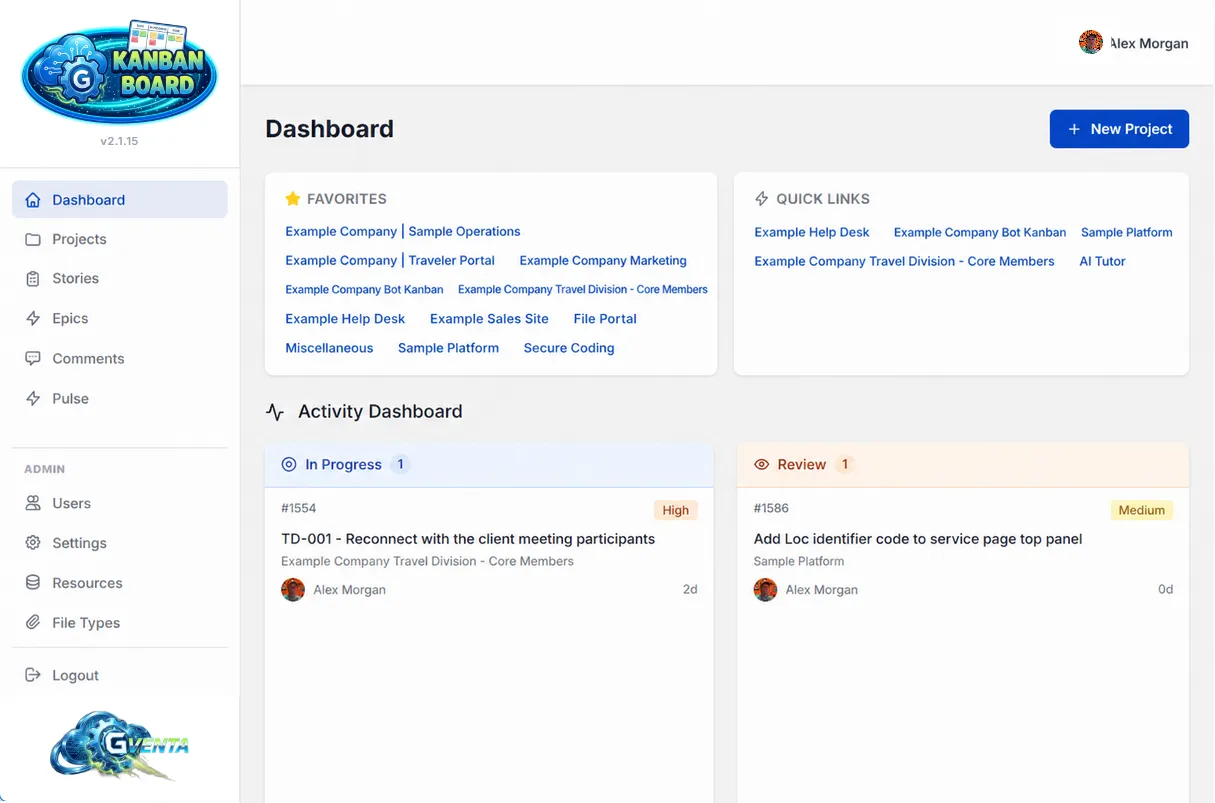 The Dashboard: the left sidebar and top header are the same on every page.
Every authenticated page shares the same chrome.
Left sidebar
The sidebar carries the product logo (linking home), the running version number, and the primary navigation: Dashboard, Projects, Stories, Epics, Comments and Pulse. Administrators additionally see an Admin section containing Users, Settings, Resources and File Types. A logout link sits at the bottom. The active item is highlighted based on the current URL. On screens narrower than 768px the sidebar collapses off-canvas behind a hamburger button with a dimming overlay.
Top header
On mobile the header shows the hamburger toggle and a centered logo. On the right you will find:
- Mentions bell — appears only when you have unread mentions, with a red count badge. Clicking it opens a panel listing each unread mention with the story title (linked), the quoted comment excerpt, who mentioned you and when. Each row has a “Mark as read” action, the panel header has “Mark all read”, and the footer links to the pre-filtered Comments page. Marking a mention read removes the row in place, decrements the badge, and removes the bell entirely once the list empties, all without a page reload. See Comments and mentions.
- Your avatar and name, linking to your profile.
Footer
A copyright line.
Where to go next
- Core concepts — the vocabulary the rest of the documentation uses.
- Roles and access control — system roles, project roles and the AI-agent flag.
- Dashboard and projects — creating your first project.
- API getting started — connecting automation to the board.