
Stories, epics and tasks
Creating, editing and reading stories in GVenta Kanban Board, plus epics with live progress, task checklists, dependencies and drag-anywhere attachment upload.
Documented from GVenta Kanban Board version 2.1.15.
A story is the unit of work in GVenta Kanban Board. This page walks through the story detail page, the create and edit forms, and the things that hang off a story: epics, tasks, dependencies and attachments.
The story detail page
 Story detail: content on the left, metadata and dependencies on the right.
Clicking a card on the board opens the story. It is the deepest page in the application: a three-column layout with a wide left column for content and discussion and a narrow right sidebar for metadata.
Header
A type chip, priority chip, status chip, the title and an Edit button. A back link returns to the project board.
Description
The Markdown-rendered description, with aggressive word-wrapping so pasted URLs, tokens and log lines cannot break the layout.
Tasks
A live checklist with a completed/total counter in the heading. Add Task opens a modal taking a title and an optional short description. Each task row has a checkbox that toggles complete / reopen instantly (completed tasks strike through and gray out), shows its creation and completion dates, and offers a delete action to the task’s creator and to administrators. All task operations happen without a page reload, with inline error reporting.
Epic panel
Shown only when the story is itself an epic. It contains a progress bar, done/total counters, a percentage, an Add Story button that pre-links the new story to this epic, and a table of every child story with ID, title, status chip, priority chip, assignee avatar and due date (overdue dates in red). Rows are clickable.
Images
Any attached image is additionally surfaced as a thumbnail grid with a full-screen lightbox viewer, separate from the file list.
Comments
The full discussion thread and the Markdown composer sit beneath the description. They are covered on their own page: Comments and mentions.
Right sidebar: Details
- Assignee, with an inline dropdown picker that reassigns without a reload.
- Creator, linked to their profile page.
- Parent epic, if any.
- Due date, red when overdue.
- Created date.
- A repository link, where the project has one.
Right sidebar: Dependencies
Two lists, Depends On and Blocking. Each entry shows a priority chip, a status chip and a link to the related story. Dependencies can be removed inline. Adding dependencies happens on the create and edit forms.
Right sidebar: Attachments
A file list with per-type icons, human-readable sizes, upload dates, download and delete actions, and a live count. See Attachments below for how uploads work.
Creating a story
Open the create form from the story page’s Add Story button on an epic, or by navigating to the project’s create-story route. The lane + on the board is a quicker alternative that creates a story from a title alone.
The form has two columns.
Left:
- Title (required, autofocused).
- A large Markdown description textarea.
- A Dependencies picker for selecting other stories in the same project.
- An Attachments area that stages files locally, with previews, before the story exists.
Right, Details:
- Type, priority and status.
- Assignee, restricted to project members.
- Due date.
- Parent epic selector.
- A “This is an epic” checkbox.
Submission happens in stages: the story is created first, any staged attachments are then uploaded against the new story ID, and only then does the browser navigate to the finished story. Arriving with ?epic_id= in the URL pre-selects the parent epic, which is how the Add Story button on an epic works. Restricted users who are not members of the project are refused.
Editing a story
The edit form presents the same field set, pre-populated, including the current dependency selection. Two things happen automatically on save that are worth knowing:
- If the status changed, the story is moved to the matching lane on the board. The board and the status field can never drift apart.
- If the assignee changed, an assignment notification email is sent to the new assignee, subject to their notification preferences.
All submitted values are validated against the configured type, status and priority sets. Anything unrecognized falls back to a safe default rather than being written through.
Epics
An epic is simply a story with the “This is an epic” flag set. Other stories become its children by selecting it as their parent epic. Epics render progress bars, completion percentages and per-status roll-ups everywhere they appear: the board’s epics strip, the story page’s epic panel, the epic detail page and the epic lists.
Epic detail page
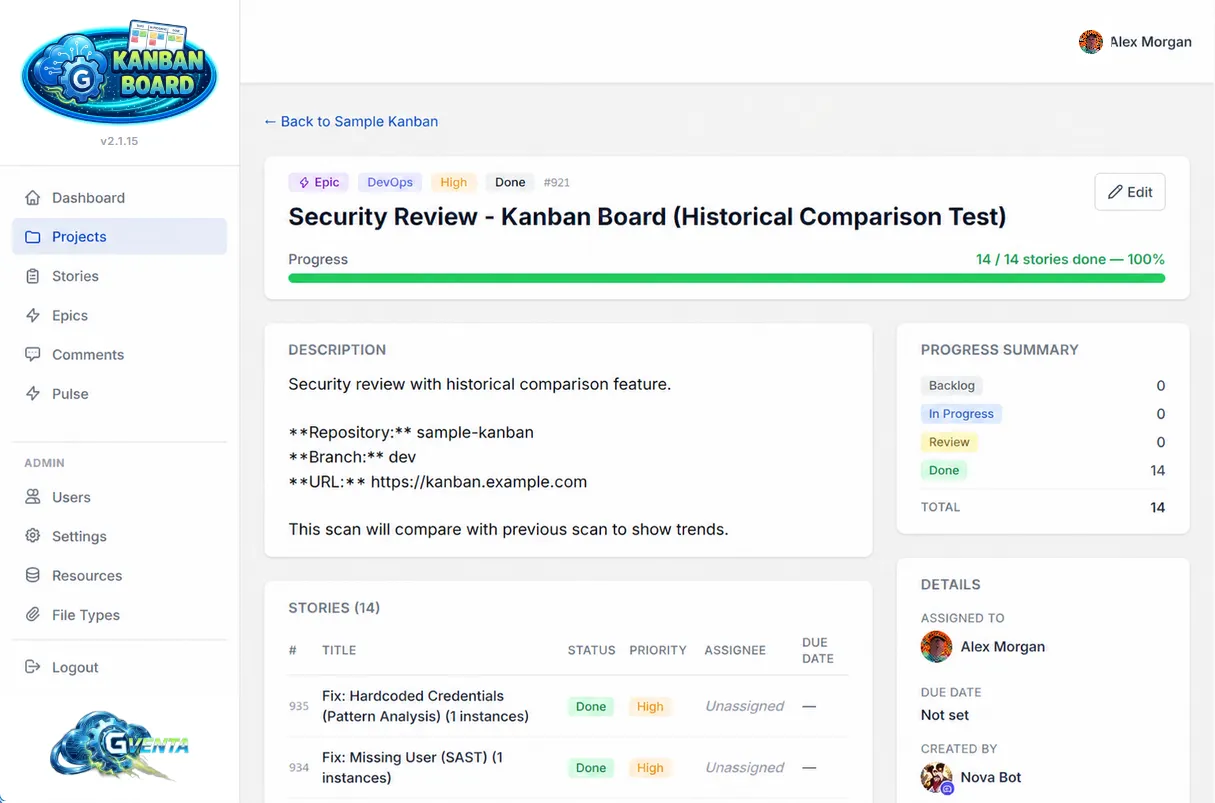 Epic detail: completion progress, per-status roll-up, and every child story in one table.
Each epic has a dedicated view with its title and header chips, its description, a table of every child story (ID, title, status, priority, assignee, due date), a Progress Summary panel with per-status roll-ups, a Details sidebar, a Dependencies panel, and the same full Markdown comment thread, with preview and help, that stories have.
Epic lists
- The project epics list is a filterable, paginated table of every epic in one project. Each row shows the epic, its child count, its completion progress and its assignee.
- The global Epics page in the sidebar shows the same table across every project you can access, with an additional project filter and an Assigned to Me shortcut. Columns: ID, title, project, type, priority, status, story count, progress and assignee.
Filter details for both are on the Search page.
Moving an epic between projects
Moving an epic to a different project (available through the API) moves all of its child stories with it automatically.
Why it matters: Progress on an epic is computed from its children the moment anything changes, so you never maintain a percentage by hand.
Tasks
Tasks are lightweight checklist items inside a story: a title, an optional description, a completion state, the creator and a completion timestamp. They live in the Tasks panel on the story page, described above. Task titles and descriptions are included in the global story search, so a checklist item is findable by its wording.
Dependencies
A dependency is a directed “depends on” link between two stories in the same project. Choose them in the Dependencies picker on the create and edit forms; remove them inline from the story sidebar. Every story shows both what it depends on and what it blocks. The application refuses to create a dependency that would form a cycle.
Attachments
Files can be attached to a story from the create form (staged before the story exists), from the Attachments sidebar on the story page, or by dragging files anywhere onto the story page. Dragging raises a full-screen drop overlay showing the maximum file size; press Escape to dismiss it. Upload progress, per-file naming and error states are all displayed inline.
Uploads are checked against the file types your administrator has enabled and the configured size and count limits (default maximum 25 MB per file and 50 attachments per story). Every file passes through the validation pipeline described in File handling and security. Attachment filenames are included in the global story search.
Related pages
- The project board — cards, lanes and quick add.
- Comments and mentions — the discussion thread on every story and epic.
- Automatic behaviors and safeguards — cycle prevention, assignment validation and lane synchronization.